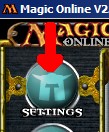
| I see lots of beginners with this problem, luckily I have prepared some screenshots to make this easy for you folks. First you need to click on the "Settings"-button on the left. I mean this one. You see, that button is very important and offers a lot of important options. Behind this button you will find a lot of options that might confuse you, but don't worry, I will cover the ones you absolutely need to know about now. You will understand the usage of the other ones pretty quickly once you get used to the programm itself. For now, just click on that button and a new window will open. | |
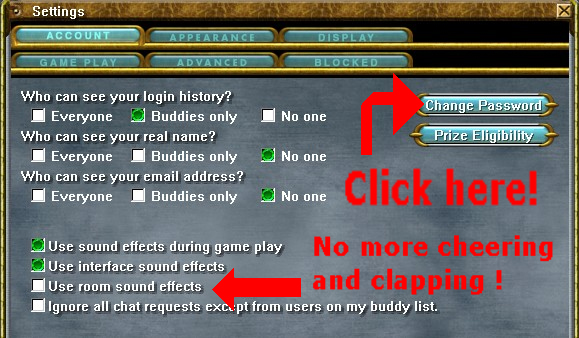 |
Here we see the picture of the new window, plus some comments I placed on top of it to make it easier to understand
what I'm babbling about. The big red arrow points you to the most important button for now, "Change Password". I suggest that you pick a password with at least 8 characters, make use of the shift-key and that you don't use anything that can be found in a dictionary. Don't forget that you can and should use numbers and symbols in your new password. You should also copy the settings I made for the sound, it eliminates the annoying sound you will otherwise hear whenever you are in a room that has tables. The other two sound-related settings will actually help you to not miss anything while you are in a game. Since we are already here, I will cover another important setting next, it will probably be the setting you will change more often then any other. What am I talking about? |
| Beginners often forget that this isn't like paper magic, you can't play all your spells anytime, unless you have told the
software when to expect it and ask you if you want to cast something. The picture is showing you the stops I would always
use instead of the default ones, unless you have a deck that really needs other stops, for example something with
Hell's Caretaker. You can see here the structure of turns pretty well. Just make sure that you don't accidentally unmark any of the important stops, like your main phase precombat and postcombat. When you get problems with your steps, look here. Especially when your kid-brother was on your machine, or your buddy thinks it might be funny to mess with them. Unlike in this picture, you should have marked the "Prompt before taking mana burn"-option. It will make your life easier, but when you are sure that you won't burn yourself, turn it off. This is it, the other options here fall in two categories. "Easy to understand" and "I'll figure it out later", you can look through all of them, just be careful to hit the "Ok"-button. |
 |
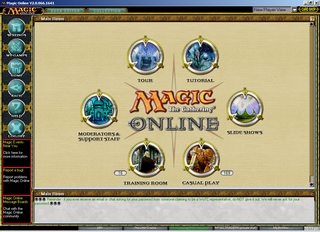 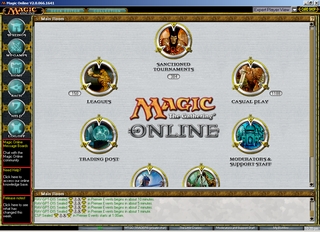 |
This is a little tricky, MTGO has got more rooms than you see when you log in for the first time.
One of the rooms is only visible in the "New Player View", the training room. If you tried to
play on the free trial server you will recognise its features. You can play the 9th Edition Themedecks here
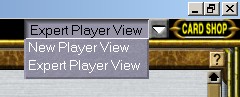
without having to own them.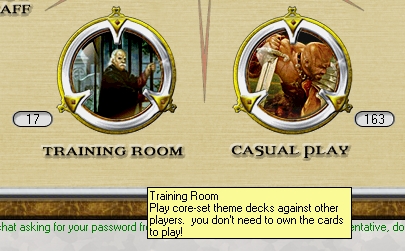 This room is ideal to learn to handle the interface, but if you played on the free server you might be already able to handle things yourself: Just remember that this room is only visible in the "New Players View". The Pictures on your left compare the both views, the one I didn't mention until now is called "Expert Player View". Some Game rooms aren't accessible in the "New Players View", for example the "Multiplayer Room". If you want to go there you have to change your view setting first. |
| Now you want to know how you change your view setting, am i right? It's on the mainscreen, next to the "Card Shop" Icon. It's not really hidden, it's just not as easy to spot as other features in the client. |
 |
 |
This is the room you need to go to when something happens that you don't understand or when you have a question,
most adepts are willing to help you. Adepts are the people with the eye-icon next to their name. Often you will see lots of people in here, some with the WoTC Icon, unlike Adepts, theese people directly work with Wizards. I don't need to mention that you should show your best behaviour in here, do I? It's also good to use your best english and be as clear as possible. By the way, most people refer to this room simply as "MaSS", if you look at its full name it's clear, but new players sometimes get confused by this. This brings me to my next Topic, behaviour. |
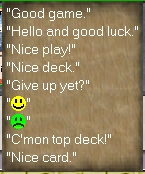
| When you are in a game, there is an easy way to be polite. I talk about the chat macros. When you
right click on your chat, you should see a menu like the one on the left. Theese will make it easier for you to play since you won't need to actually type these phrases yourself. I think this covers the basics of behaviour in here, there is a lot more to say about this, but this will be enough to give you the general direction on how things are handled in here. I guess you want to know how to make or join a chatroom now, good thing that I have got that covered. |
 |
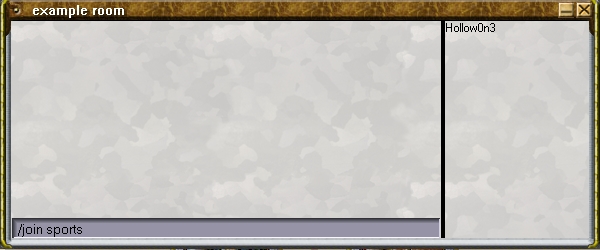 |
This is an example of what a room looks like when you just made it.
How do you make one now for yourself? Look at the command in the chat. Yes, it's that simple. Just "/join". There are some more commands that work that way, the only one you will need at this stage is the "/me"-command. That's the blue text you will see sometimes when you are in a room, just don't forget to write something after the "/me". Do you remember the smiley in the chatmacros? You can do that anywhere you can type. How? First press control and q, then release both and press another key, for the happy face it is the letter "s". If you want to try this, do it in your own room. |
 |
These tables might be pretty, but it's not easy to find a game here. But wait, there is a solution
for that dilemma. See the picture? The icon lets you switch to another view. Suddenly the pretty tables are gone and you got some excel-like columns. This isn't pretty, but is is very useful, you can click and sort them now to find someone you want to play with. But what if you want to make a table of your own? |
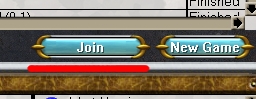
| Here you see the 2 buttons that you will click almost every day. "Join" lets you join the table you currently
marked. "New Game" is what you need now, when you click it you will get a new window that will offer some options to you. |
 |
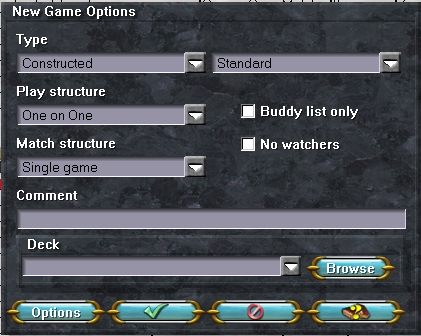
| You have a lot of options here. Most of them explain themselves. "Type" lets you choose which kind of game you want to play, at first you will most likely play Standard , since those cards are the easiest to obtain. "Play structure" lets you select if you want to play against someone, which is the default setting, or if you want to play a solitaire game. "Match structure" is something easy, it allows you to select if you want to play a duel or a match. "Buddylist only" is useful when you already have a buddy and don't want some random person to join your table. "No Watchers" does exactly what it says, it makes your game unwatchable. Use it when you don't want to be bugged by people that don't play with you at the moment. "Comment", when you want to say something special about your game, put it here. "Browse" is where you can pick what deck you want to use. "Options" is something that you can safely ignore for now. |
 |
 |
The buddylist helps you to find players you liked to play or chat with easier. It's able to show you
if they are online, if they are playing, of even when they are trading. There are two ways to add someone
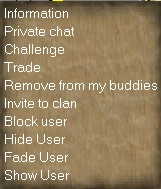
to your buddylist. The easy way is to right click someone's name, and then a menu similar to the one to the left will appear. Just for your information, if the person is already your buddy it will exactly look like this. Well, it will be different when you are not the captain of a clan, but that's advanced stuff so just ignore that "Invite to clan" for now. Right under "Trade" you can see "Remove from my buddies", this is only avaible if the person is already on your list, otherwise it will read "Add to my buddies". Right above "Trade" is "Challenge", when you want to play against a specific person, use this, it's the same as making a table but only that person can join it. Ask in a "Private Chat" first if you aren't sure if the person is willing to play against you. "Information" will show you the players id, it's sometimes funny or interesting, but not really important now. |
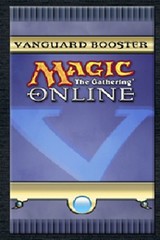 |
Ok, I guess you would like to know what this thing is first. It contains 5 avatars you can use to change your in-game
appeareance and also play with in the special "Vanguard" format. It's yours, everyone gets one. It also has some
basic lands inside. Right-click on it and select open. Now you have some cards in your collection, unless you already opened something else. Now I will try to explain the collection folder to you. It's a little complex at first but you will get it pretty soon. |
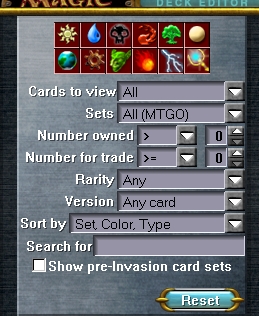 |
The upper left corner should look like this, lots of buttons, dropdowns and a little bit complex. Don't worry about that, i will guide you through the details now. I guess you recognise the icons in the upper coloumn, but I also guess the yellow orb next to the green mana symbol is a bit confusing. It's representing colorless cards, like most lands and artifacts. On to the next line of of funny pictures. Mother Earth? Not really, this stands for lands, and for lands only. Bear with me till i explain the rest, it will make sense to have this and that yellow orb then. Now that's something that clearly stands for artifacts, all kind of artifacts. That includes artifact creatures. The goblinhead is for creatures only. Fireball represents sorceries, lightning stands for instants. The glowing object is standing up for the enchantments, no I don't know why it looks like that. And now to the reason why it seems that some of these are redundant, try clicking one of those. It should be black now. Notice something? Some cards in your collection should have "vanished", you just used a filter that enables you to find cards easier. Now try to right-click something else. Suddenly you see only cards of that category, pretty usefull, huh? There is even more functionality in there. |
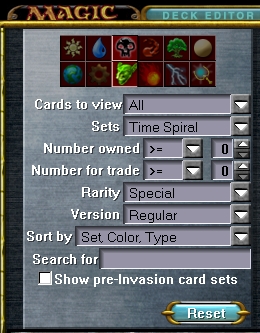
| Let's say you want to know which black creatures are in the timeshifted cards from Timespiral. You can look at them in your collection, even when you don't own them. You can see that the filters are set to the color black and creatures, and that something was selected in the dropdown menus. You see that "Rarity" was set to special, and the selected set is "Timespiral", so far, so simple.The version selection is set to regular, that way you won't see any foils. The important part is the "Number owned", do you notice the difference? Try this setting yourself and you will see that you can suddenly see cards that you don't own. Very useful if you just need to check what a card actually does. Play arround with this option and you can see all cards in MTGO. Now, let's start with some basics regarding trading. You see that you can filter to see only cards that you marked for trade. But how do you mark them tradeable? |
 |
 |
Let's look at a card, you see 3 numbers here, 2 with arrows. The first one explains itself, it's the amount you
have in your collection. The second one is the amount you want to trade, here it is zero but you can increase and decrease it with those arrows. The third may need some more explanation, it's supposed to be the amount of the card you have in paper. Yes, this allows you to keep track of your paper cards, but some people also use it simply to keep track of the amount of cards they want to keep, trade later or something else. The right click button is also working here, it's possible to make a certain amount of cards tradeable or untradeable. The number in this menu changes when you use the "Number owned" option. |
| On the main screen of the client, the place you end up after logging in, is a "Trading Post". You can only see
this when you are in "Expert Player View", I already told you about that. Here it gets a little complicated since you will be
taken to a new room with three different Icons to choose from. It would help to know what you are looking for now. If you don't know and just want to take a look around, you should be careful. |
 |
 |
Here you see the 3 official rooms you can trade in. Official? Are there unofficial rooms? Yes, but those are for more advanced articles, for now let's teach you how trading works. The marketplace is full of people, or so it seems, there is alot of trading spam here, most is so quick that you won't have time to read anything. This place isn't really friendly for beginners. The Messageboards are a lot easier to handle. You can search for cardnames, and maybe find out what they are worth. Always doublecheck if the price is right. Most of the time you will be able to find mtgotradersbot there, i suggest that you try your first trade here. |
 |
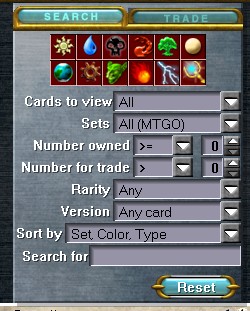 |
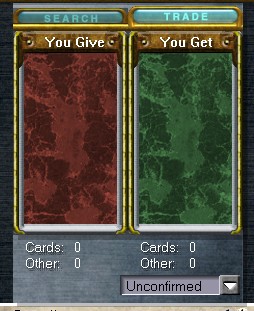
When you click the "Search" button you can filter for cards that you.. well.. search. When you click on a card it will move itself to the "You get" window. If you are trading you should talk with the other person, if it's a bot you might get some price information from it. Most bots have a timelimit, so don't forget to pay attention to the chatwindow. When both have what they want you use the "confirm" dropdownmenu. When both do this a window that shows all the cards will appear. Again, doublecheck what amount of cards or tickets you are giving and also what you are recieving. Click the "Confirm" button when you are ready for it. A Window that tells you about the trade and gives you a tradenumber should appear now together with with a "New Cards" Window. Check again it everything with the new cards is ok. When it's not you should write down the tradenumber before clicking it away, otherwise just close both and enjoy your new cards. |
 |
I am sure you remember how I told you about the filter possibilities in your collection, they work in here as well.
Here you can even filter for specific manacosts, and believe me that's quite handy. When you unmark the "My Cards"-option you can even build decks with cards that you don't own, you won't be able to use those, but it is a feature that is very useful, i will soon explain why. The "Show all versions" function isn't important for you now but that might change in the future so i will explain this anyway. Foil cards are always counted together with the nonfoil cards you own. Uncheck this to see how many different versions of Aven Fisher you have. |
| This is your deck, or at least it is going to be. You can click on the cards in the card pool to transfer one of them to this deck, or use the right-click menu to transfer 4 or even 10 at once. You can also send cards into your decks sideboard. Most of the buttons explain themselves, but "NetDeck" and "Stats" need a little in-depth information. |  |
Oh, don't worry, I won't bother you anymore, you are almost finished. The only thing that is left is... to give you some links to check out.
Code of Conduct - Everytime you log into MTGO you agree to this, read it at least once completely, it is very technical but it is better when you know about this.
Magic Online Website - Official Magic Online website.
Magic Online Community - The forums, join the fun.
The MTGO FAQ - Maintained by the community at the MTGO-forums. When you have a problem, the chance is high that the solution is already in there.
Magic Academy - If you are completely new to Magic, or just a bit rusty with the basics of gameplay, here is a good read for you.
MTGO Tips and Tricks - Chat shortcuts, game shortcuts and other tips.
I guess this is it then, the end of this article and the beginning of your quest to learn more about MTGO and have even more fun with it.
- yours
Hollow